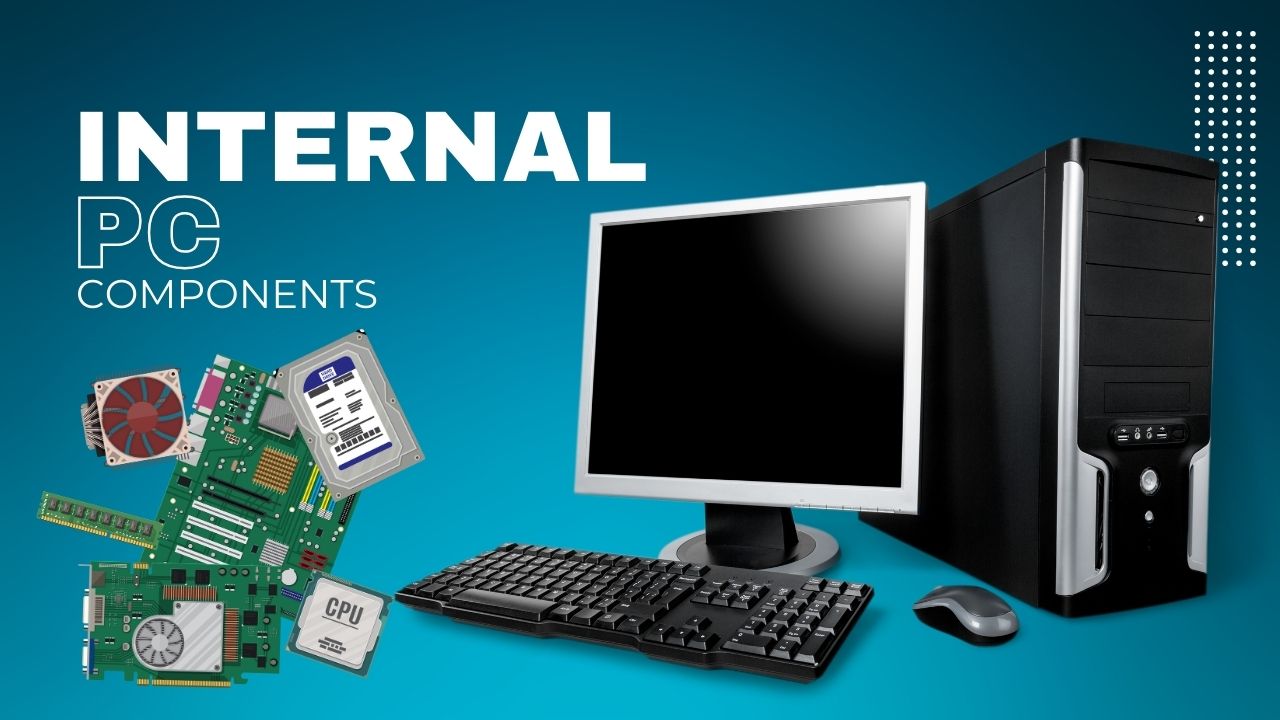
Whether you’re building a new workstation, upgrading an existing rig, or just curious about what makes your laptop tick, knowing the core components inside a modern computer can help you make smarter choices. Each part plays a unique role in overall performance, efficiency, and reliability, from powering AI workloads to everyday browsing. Let’s break down the essentials.
1. Central Processing Unit (CPU)
Often called the computer’s ” brain, ” the CPU handles instructions and calculations that drive every application. Modern CPUs feature multiple cores (typically 4–16 for desktops) and support simultaneous multithreading (SMT), allowing them to process many tasks in parallel. When choosing a CPU, consider:
- Clock Speed (GHz): Higher speeds deliver faster single-threaded performance.
- Core/Thread Count: More cores/threads benefit multitasking and parallel workloads (e.g., video editing, and code compiling).
- Cache Size: Larger caches reduce latency for frequently accessed data.
- Power Efficiency is measured in TDP (thermal design power); chips with lower TDP run cooler and draw less power.
Tip: For AI enthusiasts, CPUs with substantial single-core performance help with preprocessing tasks before handing off heavy lifting to GPUs.
2. Graphics Processing Unit (GPU)
Initially designed for rendering graphics, GPUs have evolved into parallel-compute workhorses ideal for AI, deep learning, and scientific simulations. Key considerations:
- CUDA / OpenCL Support: NVIDIA’s CUDA ecosystem remains the industry standard for AI frameworks, while AMD GPUs leverage OpenCL and ROCm.
- VRAM (Video RAM): More onboard memory (6–24 GB+) allows larger models and datasets.
- Tensor Cores: Present on modern NVIDIA cards, these dedicated cores significantly accelerate matrix operations used in machine learning.
- Thermals & Power: High-end GPUs can exceed 300 W TDP; adequate cooling and a robust PSU are essential.
3. System Memory (RAM)
RAM provides your CPU and GPU with fast, temporary storage for active data. Without enough memory, systems resort to slower disk-based swap, dramatically impacting performance.
- Capacity: 16 GB is the current baseline for general use; 32 GB or more is recommended for AI training, video editing, or large datasets.
- Speed & Latency: DDR4 at 2,400–3,200 MHz is common; DDR5 introduces higher speeds but at higher cost. Lower CAS latency means quicker data access.
- Form Factor: Desktop PCs use DIMMs, while laptops use SO-DIMMs. Always match speed and voltage when populating multiple sticks.
4. Storage Drives (SSD vs. HDD)
Your choice of storage affects boot times, application launch speeds, and data transfer rates.
- NVMe SSDs: Connect via M.2 slots over PCIe (up to 7 GB/s read speeds). Ideal for OS, applications, and active projects.
- SATA SSDs: Offer up to 550 MB/s; still vastly faster than HDDs and typically more affordable than NVMe.
- Hard Disk Drives (HDDs) are best for bulk storage (archives, backups) where speed isn’t critical. They have moving parts and are more vulnerable to failure, but they are more cost-effective.
Tip: A two-tiered setup—NVMe SSD for your OS and frequently used software, plus a large HDD for media and backups—balances cost and performance, though we recommend going with SSDs because of greater reliability and performance (no moving parts).
Tip 2: With no moving parts, SSDs run silently, generate less heat, and shrug off bumps—making them ideal for laptops and on‑the‑go users. While HDDs still offer more storage per dollar, SSDs deliver a dramatic performance boost and greater reliability that your workflow—and your sanity—will thank you for.
5. Motherboard
The motherboard ties everything together, providing sockets, slots, and ports for components and peripherals.
- Chipset & Socket: Determines CPU compatibility and feature set (PCIe lane allocation, I/O options).
- Expansion Slots: Ensure enough PCIe slots for GPUs, NVMe adapters, and other cards.
- Connectivity: Look for USB‑C, Thunderbolt, Wi-Fi 6/6E, and onboard audio for modern conveniences.
- Form Factor: ATX, Micro‑ATX, and Mini‑ITX cater to different case sizes and expansion needs.
6. Power Supply Unit (PSU)
A reliable PSU delivers clean, stable power to all components. Key specs include:
- Wattage: Calculate total system draw plus a safety margin (20–30%). High-end gaming or AI rigs often require 750–1,000 W.
- Efficiency Rating: 80 PLUS Bronze, Gold, Platinum—higher tiers waste less energy as heat.
- Modularity: Modular cables improve airflow and cable management.
7. Cooling Solutions
Heat is the enemy of longevity and performance. Effective cooling keeps components in their optimal temperature ranges.
- Air Cooling: Tower-style heatsinks with one or more fans; cost-effective and reliable.
- Liquid Cooling: All-in-one (AIO) loops or custom loops offer superior thermal performance for overclocked systems.
- Case Airflow: Intake and exhaust fan placement can make or break your cooling strategy.
8. Case & Peripheral Connections
The computer case houses all hardware and impacts build aesthetics and thermals.
- Form Factor Compatibility: Match the case to your motherboard size.
- Front I/O: Ensure easy access to USB, audio jacks, and card readers.
- Drive Bays & Mounts: Plan for current and future storage needs.
Don’t forget your peripherals—keyboards, mice, monitors, and audio equipment all play a role in your computing experience.
Bringing It All Together
Building or upgrading a modern computer is a balancing act. Identify your primary use cases—AI training, content creation, gaming, or general productivity—and allocate your budget accordingly. A top-tier GPU benefits deep learning projects, while a high‑clock CPU and fast RAM pay dividends in single-threaded applications.
Understanding each component’s role empowers you to assemble a system that not only meets today’s demands but scales for tomorrow’s innovations. Ready to get your hands dirty? Check out our upcoming guide on “Optimizing Your PC for AI Workloads” and subscribe to Daily AI Blog for more tips!
Share this article
Leave a Reply