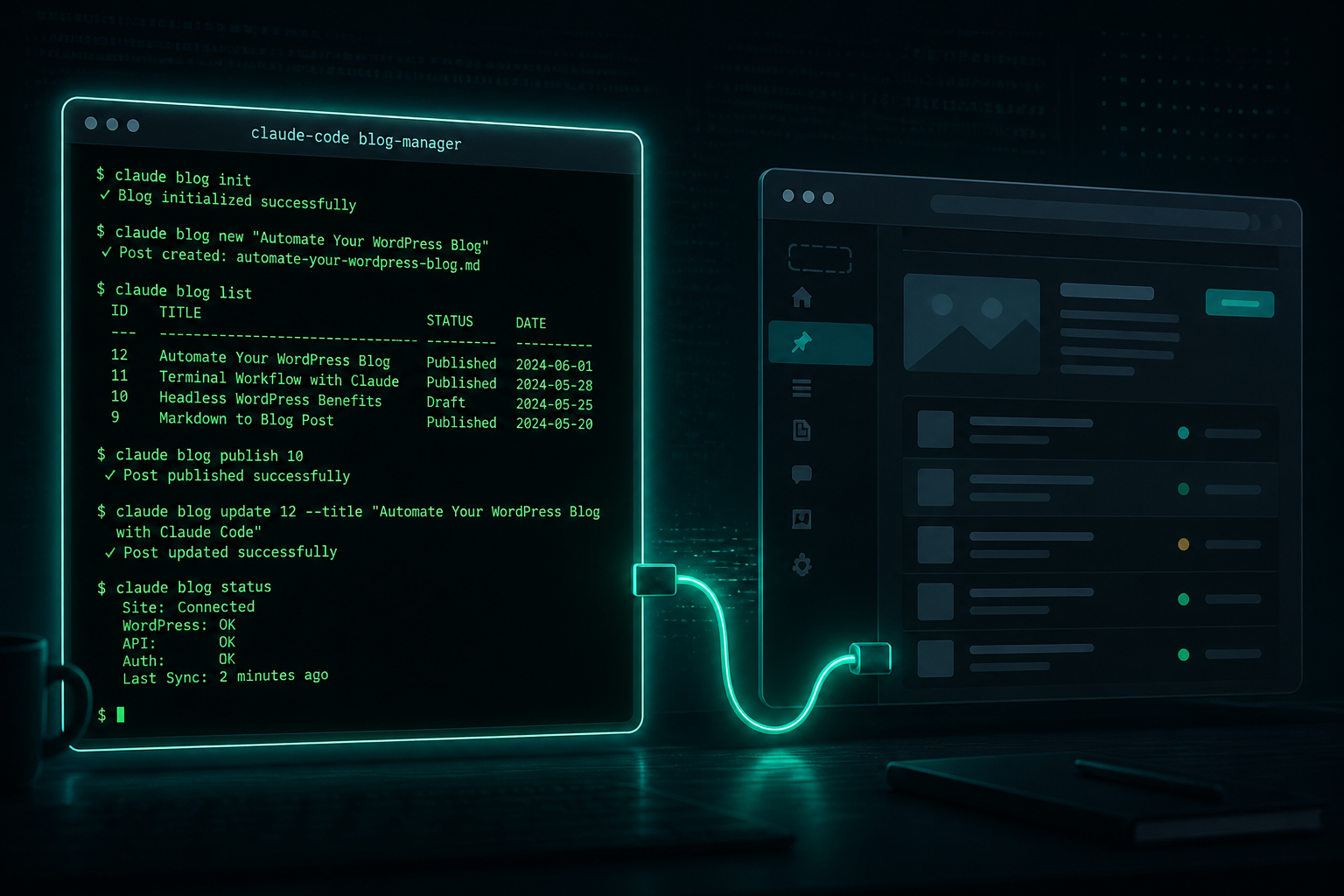
What if you could manage your entire WordPress blog — writing, publishing, SEO, comments, categories, everything — without ever opening the WordPress dashboard? That’s exactly what I’ve been doing with Claude Code, Anthropic’s terminal-based AI coding agent. Here’s the exact setup I use to run dailyaiblog.com entirely from my terminal.
What You’ll Need
Before we start, make sure you have:
- A self-hosted WordPress site (WordPress.com Business plan also works)
- Admin access to your WordPress dashboard
- A terminal (Mac, Linux, or WSL on Windows)
- Claude Code installed (
npm install -g @anthropic-ai/claude-code) curlandpython3installed (both come preinstalled on macOS and most Linux distros)
Step 1: Enable the WordPress REST API
Good news — if you’re running WordPress 4.7 or later, the REST API is already enabled. You can verify by visiting:
https://yoursite.com/wp-json/wp/v2/postsIf you see a JSON response with your posts, you’re good. If you get a 404, check that your permalinks are set to anything other than “Plain” under Settings → Permalinks in your WordPress admin.
Step 2: Create an Application Password
WordPress uses Application Passwords to authenticate API requests without exposing your main login credentials. Here’s how to create one:
- Log into your WordPress admin dashboard
- Go to Users → Profile
- Scroll down to the Application Passwords section
- Enter a name like “Claude Code” in the New Application Password Name field
- Click Add New Application Password
- Copy the generated password immediately — it won’t be shown again
The password will look something like: AbCd EfGh IjKl MnOp QrSt UvWx (with spaces). Keep the spaces — they’re part of the password.
Step 3: Set Up Your Project Directory
Create a dedicated directory for your blog management toolkit:
mkdir ~/my-blog-manager
cd ~/my-blog-manager
mkdir bin drafts templates
Now create a .env file to store your credentials securely:
WP_SITE_URL="https://yoursite.com"
WP_USERNAME="your-wordpress-username"
WP_APP_PASSWORD="AbCd EfGh IjKl MnOp QrSt UvWx"
And a .gitignore so your credentials never get committed:
.env
drafts/*.md
drafts/*.html
Step 4: Build the API Toolkit
Create a file called bin/wp-api.sh. This is a shell script with functions that wrap curl calls to the WordPress REST API. Here’s the core structure:
#!/usr/bin/env bash
# Load credentials
source "$(dirname "${BASH_SOURCE[0]}")/../.env"

WP_API="${WP_SITE_URL}/wp-json/wp/v2"
WP_AUTH="${WP_USERNAME}:${WP_APP_PASSWORD}"

_wp_curl() {
  curl -s -u "$WP_AUTH" "$@"
}

# List posts
wp_list_posts() {
  local per_page="${1:-10}"
  _wp_curl "${WP_API}/posts?per_page=${per_page}&status=any"
}

# Create a post
wp_create_post() {
  local title="$1" content="$2" wp_status="${3:-draft}"
  local data=$(python3 -c "
import json, sys
print(json.dumps({
    'title': sys.argv[1],
    'content': sys.argv[2],
    'status': sys.argv[3]
}))
" "$title" "$content" "$wp_status")
  _wp_curl -X POST "${WP_API}/posts" \
    -H "Content-Type: application/json" -d "$data"
}

# Update a post
wp_update_post() {
  local post_id="$1" json_data="$2"
  _wp_curl -X POST "${WP_API}/posts/${post_id}" \
    -H "Content-Type: application/json" -d "$json_data"
}

# Delete a post
wp_delete_post() {
  local post_id="$1"
  _wp_curl -X DELETE "${WP_API}/posts/${post_id}"
}
You can expand this with functions for categories, tags, comments, media uploads, and search. The pattern is always the same: a function that builds a URL and calls _wp_curl.
Make it executable:
chmod +x bin/wp-api.shStep 5: Test Your Connection
Source the script and try listing your posts:
source bin/wp-api.sh
wp_list_posts 3 | python3 -m json.tool
If you see your posts in formatted JSON, everything is working. If you get an authentication error, double-check your username and application password in .env.
Step 6: Create a CLAUDE.md File
This is where the magic happens. CLAUDE.md is a special file that Claude Code reads automatically when you open a project. It tells Claude how to behave, what tools are available, and what workflows to follow.
Create a CLAUDE.md in your project root with instructions like:
# My Blog — Command Center

## Setup
Source `bin/wp-api.sh` before any WordPress operation.

## Workflows

### Research
When I ask you to research a topic:
1. Search the web for 5-10 sources
2. Save a research brief to drafts/

### Blog Post
When I ask you to write a post:
1. Check drafts/ for research briefs
2. Write HTML content with SEO metadata
3. Publish as DRAFT to WordPress via wp_create_post
4. Show me the post ID, preview link, and edit link

### Site Management
Respond to commands like "list draft posts" or
"update post 123" by calling the appropriate
wp-api.sh functions.
With this file in place, Claude Code understands your entire blogging workflow every time you open the project.
Step 7: Start Managing Your Blog
Now open Claude Code in your project directory:
cd ~/my-blog-manager
claude
And start talking to it naturally. Here are real commands you can use:
Content Management:
- “Show me all my draft posts”
- “What are my most recent published posts?”
- “Search my posts for articles about AI agents”
- “Update the title of post 342 to something catchier”
- “Publish post 346”
- “Delete post 100”
Writing:
- “Research the latest AI coding tools and save a brief”
- “Write a blog post about OpenClaw and publish it as a draft”
- “Edit the intro paragraph of my latest draft — make it punchier”
Organization:
- “List all my categories”
- “Create a new category called AI Agents”
- “Add the tag ‘machine learning’ to post 333”
- “Show me recent comments”
Step 8: The Full Workflow in Action
Here’s what a typical blogging session looks like for me:
- I open my terminal and type
claude - I say: “Research the latest news about OpenAI’s robotics plans”
- Claude searches the web, reads articles, and saves a research brief to my
drafts/folder - I say: “Write a blog post from that research”
- Claude writes a full HTML post with an SEO title, meta description, categories, and tags — then publishes it as a draft to WordPress
- I get back a post ID, preview link, and edit link
- I review the preview, say “make the conclusion stronger” or “add a section about safety concerns”
- Claude updates the post via the API
- I say “publish it” — and it’s live
The entire process — from research to published post — takes about 10 minutes. No browser tabs. No WordPress dashboard. No copy-pasting between tools.
Pro Tips
Use JSON formatting for readability. When Claude returns raw API responses, pipe them through python3 -m json.tool or ask Claude to format them as a table. Your CLAUDE.md can include instructions to always format API responses cleanly.
Save drafts locally first. Having Claude save posts to drafts/ before publishing gives you a local backup and makes it easy to iterate before pushing to WordPress.
Never auto-publish. Set your CLAUDE.md to always create posts as drafts. You should always review before going live. Add a rule like: “Never publish without explicit confirmation.”
Track your categories and tags. Run wp_list_categories and wp_list_tags periodically so Claude knows what taxonomy already exists. This prevents duplicate categories and keeps your site organized.
Keep credentials out of git. Your .env file should always be in .gitignore. Application passwords grant full API access to your site — treat them like any other secret.
The Bottom Line
Managing a WordPress blog through Claude Code isn’t just a novelty — it’s genuinely faster than the traditional dashboard workflow. Research, writing, SEO optimization, publishing, and site management all happen in one place, in natural language, without context-switching between tabs and tools.
The WordPress REST API is powerful but tedious to use directly. Claude Code turns it into a conversation. And once your CLAUDE.md is dialed in, every future session starts with Claude already knowing exactly how your blog works.
If you run a blog and you’re already using Claude Code for development, this setup takes about 20 minutes to build. After that, your terminal is your CMS.
Share this article
Leave a Reply